
Tervia

The machines you log into, in one window.

SSH, RDP, SFTP and port forwarding in one desktop app, with a shared vault and encrypted sync between your computers. A Rust backend and one webview, not Electron. No account, no telemetry.

Free and open source, Apache-2.0.

A host list: group acme holds prod (db-01 over SSH, win-build over RDP, both via bastion) and bastion; group homelab holds pve-01 with a local forward on port 8006, and nas.
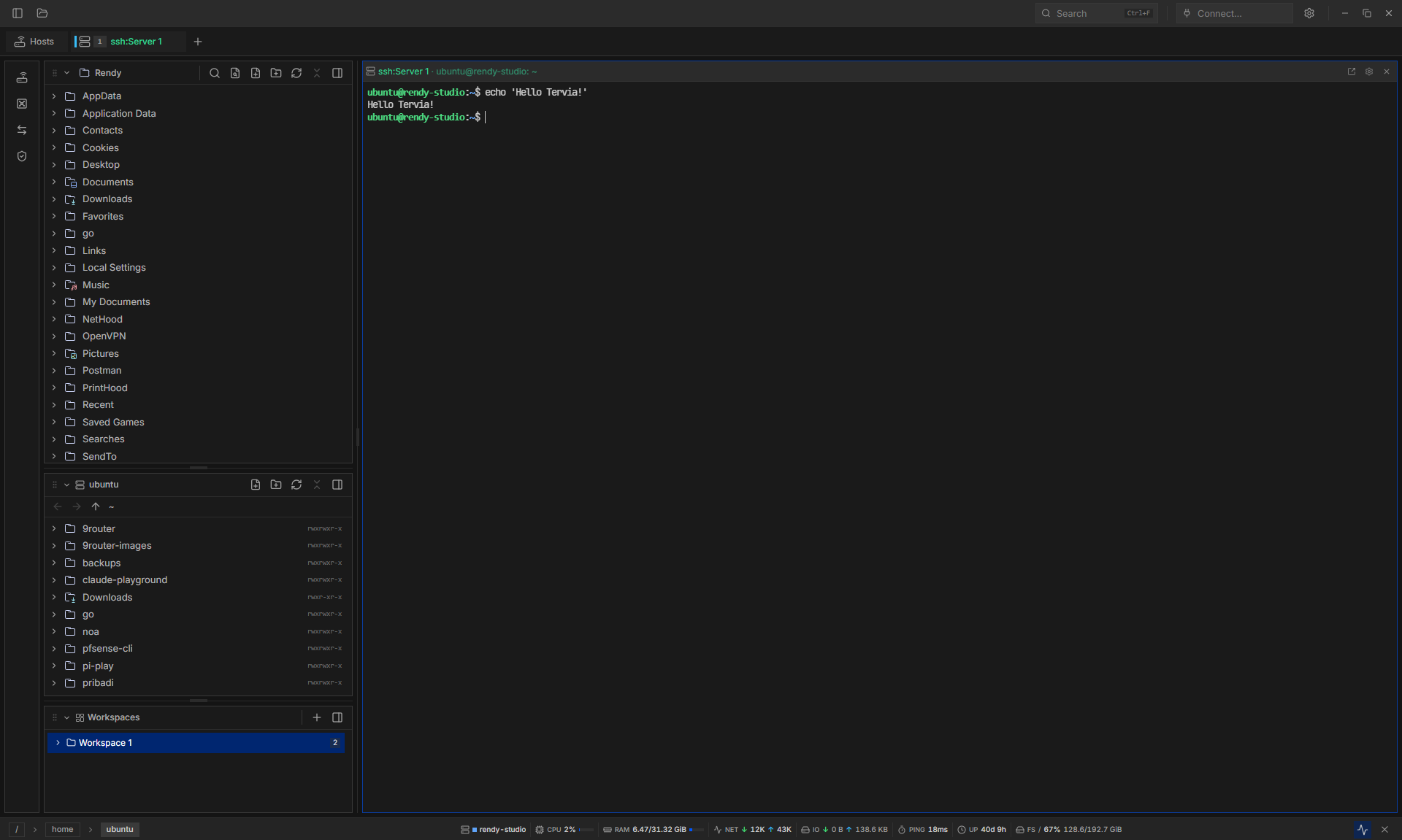
Enlarge screenshot: Tervia's main window: an SSH terminal, the local and remote file trees on the left, and live host CPU, RAM, network and ping in the status bar.

Hosts

Every SSH and RDP host in one list, in groups you nest yourself.

  • Tags, an icon and a colour per host. Search by name, see when you last connected.
  • Import from ~/.ssh/config and PuTTY .reg exports.
  • Connect from the Hosts page, the quick connect box in the header, or # in the Command Palette.
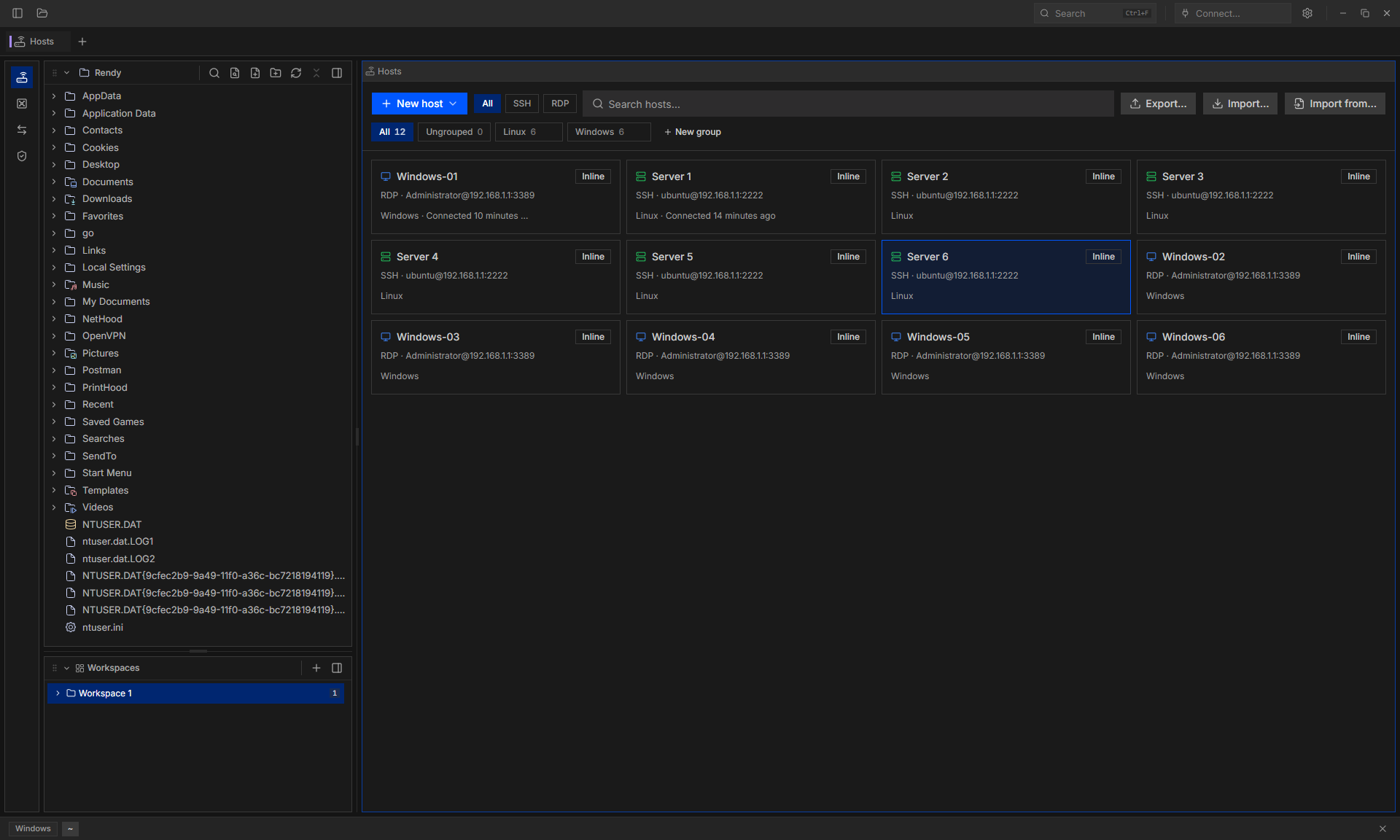
Enlarge screenshot: The Hosts page: SSH and RDP hosts as cards in Linux and Windows groups, with their address, last connection and protocol filters.

Vault

Identities and keys stored once, shared by every host that logs in with them.

  • An identity is a username plus a password, a key or ssh-agent. One identity can use its key over SSH and its password over RDP.
  • Plain private keys, OpenSSH certificates, or hardware keys through ssh-agent. Generate Ed25519, ECDSA P-256 or RSA-4096, or import OpenSSH, PKCS#1, PKCS#8 and PuTTY .ppk keys.
  • Check a key to see its type and SHA-256 fingerprint, and copy its public key for authorized_keys.
  • Give a group a default identity and new hosts in it start with it.
  • Secrets live in the macOS Keychain, a DPAPI-encrypted file on Windows, or a plaintext file with mode 0600 on Linux.
One identity, deploy, used by three hosts: db-01 and bastion log in with its key over SSH, win-build with its password over RDP.

SSH

One session per host. Tabs, forwards and RDP tunnels ride on it.

  • Password, private key with passphrase, ssh-agent, OpenSSH certificates, and hardware keys through ssh-agent.
  • Jump host chains.
  • On first connect Tervia shows the host key's SHA-256 fingerprint and pins it once you trust it. The Known Hosts page lists pins and revokes them.
Two terminal tabs, a local forward on port 5432 and an RDP tunnel all share one SSH session to db-01.

Port forwarding

Local, remote and SOCKS rules that start when you need them.

  • -L, -R and dynamic SOCKS5 -D. Local listeners bind 127.0.0.1 only. Leave the local port on Auto and the OS picks a free one.
  • Start a rule by hand, with the host's terminal (-L only), or when Tervia starts. Rules that start with Tervia retry after 1, 3, 7, 15 and 30 seconds if the connection fails.
  • Each rule shows its route and whether it is running, stopped or failed. A failed bind says why, such as a port already in use or one below 1024.
  • Run a dev server on the remote machine and the localhost:PORT URL it prints is forwarded for you.
Rule Listens on Sends to Starts
-L 127.0.0.1:5432 db-01:5432 with the terminal
-R bastion:8080 127.0.0.1:3000 by hand
-D 127.0.0.1:1080 SOCKS5 when Tervia starts
db-01:~/app$ pnpm dev
  Local:   http://localhost:5173/
Tervia sees the URL and forwards remote port 5173 to a free port on this computer.

SFTP

Remote files next to local ones. Drag between the two trees to upload and download.

  • Drop, paste or drag files onto the remote tree to upload. Drag them onto the local Files tree to download.
  • Open a remote text file in the editor and save it back.
  • Create, rename, move by drag and delete.
  • Shows the branch name of remote git repos in the Workspaces panel.
RDP

Windows desktops in a pane, next to your terminals.

  • TLS and CredSSP (NTLM). The server certificate is pinned on first connect.
  • Resolution follows the pane, or set a fixed size.
  • Clipboard text and images, both ways.
  • Connect directly, or through a saved SSH host.
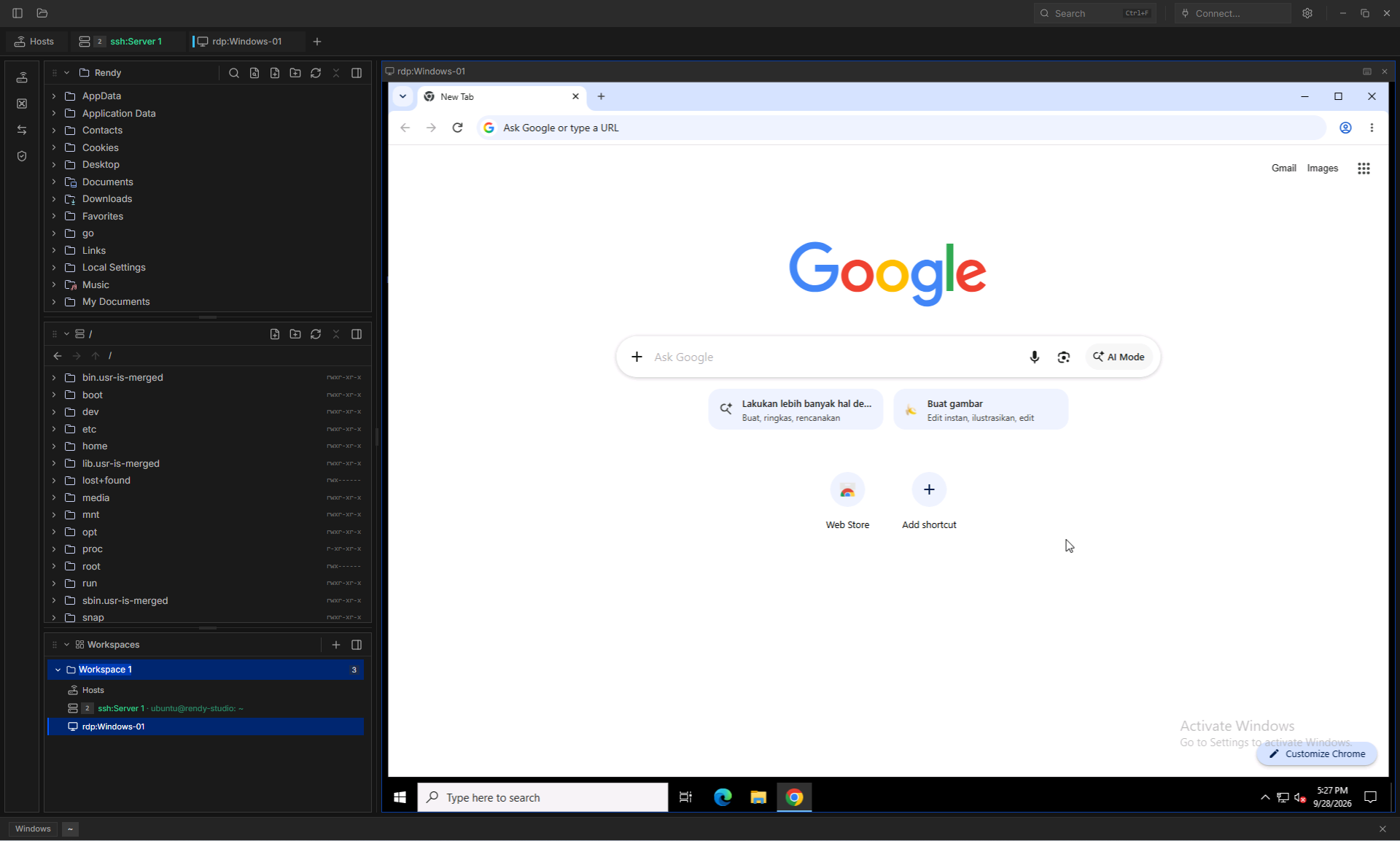
Enlarge screenshot: A Windows desktop over RDP in a Tervia tab, next to an SSH tab, with the remote file tree still open on the left.

Sync

Hosts, vault and forward rules on every computer you use, encrypted before they leave this one.

  • Off by default. While it is off, nothing is uploaded, downloaded or listed.
  • Every device uses the same passphrase. The storage provider never sees a hostname or a key.
  • Runs on launch, on focus and after an edit, with Pull now and Push now when you want it.
  • Passwords never sync. Private key bodies and their passphrases sync only if you turn that on. Host-key pins, and which rules start with Tervia, stay on each device.
  • When two devices edit the same record, the newest edit wins once both have synced.
  • Rather keep a file? A .tervia-backup holds hosts, groups, the vault, forward rules and their secrets, sealed with a passphrase.
Storage
S3-compatible, or WebDAV (Nextcloud, ownCloud)
Encryption
AES-256-GCM
Key derivation
PBKDF2-HMAC-SHA256, 600,000 iterations
Object names
HMAC-SHA256

Local workspace

A terminal, an editor and a file tree for this computer too.

  • xterm.js with WebGL. Shell integration for zsh, bash, fish and PowerShell. Local sessions survive closing the window.
  • Split panes, tabs, saved workspaces and pop-out windows.
  • CodeMirror 6 editor with vim mode, format on save and Markdown preview.
  • See whether Claude Code, Codex, Gemini and other agent CLIs in your terminals are working, waiting or done, on one board.
  • Themes, rebindable shortcuts, and a Command Palette on Mod+Shift+P.

Download

The latest release for macOS, Linux and Windows.

Tervia checks for signed updates every 6 hours and installs only when you say so.

macOS 10.15+

Builds are not code-signed. Drag Tervia to Applications, then run once:

xattr -cr /Applications/Tervia.app

Linux

The AppImage needs FUSE, or run it with --appimage-extract-and-run. Blank window or EGL_BAD_PARAMETER: set WEBKIT_DISABLE_DMABUF_RENDERER=1.

Windows

Per-user installer, not code-signed. SmartScreen warns on first launch: click More info, then Run anyway.

The tervia command opens a folder or file in the running window. The Windows installer and the .deb and .rpm packages put it on your PATH. On macOS and with the AppImage, turn it on in Settings, General. It writes ~/.local/bin/tervia, so that folder must be on your PATH.

tervia ~/projects/api